EQ Wave Installation
Safety Requirements
Installation of the EQ Wave sensor involves direct connection to energized electrical systems and must be performed only by qualified electrical personnel familiar with electrical safety procedures, local electrical codes, and proper lockout/tagout protocols.
Critical Safety Information
Qualified Personnel:
- Electrical contractor license (where required by local jurisdiction)
- Experience with 3-phase power systems up to 600V
- Knowledge of power measurement equipment
- Understanding of NFPA 70E arc flash and electrical safety standards
De-Energization Requirements:
- De-energize all circuits using proper lockout/tagout (LOTO) procedures before making electrical connections
- Follow NFPA 70E or equivalent electrical safety standards
- Use appropriate personal protective equipment (PPE):
- Arc-rated clothing (minimum 8 cal/cm² where required)
- Arc-rated face shield (if working on energized circuits)
- Insulated gloves rated for working voltage
- Safety glasses and hard hat (where required)
Default configuration: Voltage-output current transducers with internal burden resistors (e.g., Socomec Accu-CT, 333mV output).
Do NOT use traditional current transformers (CTs) with default configuration. CTs produce dangerous open-circuit voltages without proper external burden resistors.
Before installation:
- Verify your current sensors are voltage-output transducers (333mV output) OR
- Contact [email protected] to configure unit for traditional CTs with external burden resistors
- See detailed current sensor requirements in Step 3 below
Voltage and Power Limits:
- Voltage measurement inputs (V0-V3): 600V RMS maximum (designed to IEC 61010-1 CAT III)
- AC power supply terminals (L/L1, N/L2): 528V AC maximum
- For systems above 600V line-to-ground, use appropriate potential transformers (PTs)
- For AC power above 528V, use external DC power supply
Installation Environment:
- Operating temperature: -40°C to +70°C
- Install in electrical enclosure or panel providing appropriate environmental protection
- Maintain clearances per local electrical code requirements
Package Contents
EQ Wave Device Unit:
- Device with serial number EQW-_________ (record for support reference)
-
Mounting hardware (one option, as specified when ordering):
- 3M Dual Lock adhesive strips (standard)
- DIN rail clips (35mm rail, IEC 60715)
- Magnets for ferrous surfaces
- USB power cable (for benchtop testing and configuration)
Communications:
- 2.2mm duplex POF (plastic optical fiber) cable (default 2m length; custom lengths available)
- Media converter (Firecomms FY-ENT-KSU)
- Media converter USB power cable
- Media converter USB power supply (5V, 0.5A)
- POF cutting tool
- Cat5e Ethernet patch cable (RJ45, for media converter to gateway connection)
Installation Materials:
- Self-adhesive cable identification labels
- Alcohol prep pad (surface preparation for adhesive mounting)
Accessories: Additional POF cable and media converter kits (FF-FYENT-KSU, includes media converter, USB power cable, USB power supply, POF cutting tool, and Cat5e patch cable) are available from FiberFin in North America.
Note: The EQ Wave requires a host computer for data collection and configuration. This can be the EQ Gateway (sold as a separate option) or a customer-supplied computer. See Deployment Options for details.
Connection Guide
Step 1: Mount the Device
Mounting Method (as supplied with your kit):
3M Dual Lock Adhesive (standard):
- Clean mounting surface with alcohol prep pad; allow 15 seconds to dry
- Peel protective backing from adhesive strips (pre-applied to sensor enclosure)
- Position sensor and press firmly for 30 seconds
DIN Rail Clips:
- Hook bottom edge of clip onto DIN rail (35mm per IEC 60715)
- Lift the device upwards to compress the springs while bringing the top edge of the clip over the top of the rail
- Release the device, then check that it is secure by pulling downwards and tilting side to side slightly
Magnetic Mounting:
- Ensure ferrous mounting surface is clean and flat
- Position sensor; magnets hold securely on contact
- Verify mounting by attempting to slide sensor (should resist movement)
Clearance Requirements:
- Minimum 25mm clearance on all sides for convective cooling
- Do not obstruct optical fiber connector or terminal access
- Mounting surface temperature must remain within -40°C to +70°C range
Step 2: Connect Voltage Measurement Inputs
Ensure circuits are de-energized and locked out per NFPA 70E before making any electrical connections.
Voltage Input Terminals (Weidmüller Omnimate 4.0 push-in plug, 7.5 mm pitch, 12–20 AWG; header 8000078318, plug 8000078357):
| Terminal | Function | Typical Connection | Typical Wire Color (NA/EU) |
|---|---|---|---|
| V0 | Neutral/Reference | System neutral or ground reference | White / Blue |
| V1 | Phase A (L1) | Line 1 voltage | Black / Brown |
| V2 | Phase B (L2) | Line 2 voltage | Red / Orange |
| V3 | Phase C (L3) | Line 3 voltage | Blue / Gray |
Voltage Measurement Specifications:
- Maximum input voltage: 600V RMS line-to-ground (designed to IEC 61010-1 CAT III)
- Input impedance: 4 MΩ per channel (V1/V2/V3 referenced to V0)
- For systems above 600V: Use potential transformers (PTs) and connect sensor to PT secondaries
- Reference input V0: Connect to system neutral or ground reference for proper common-mode rejection
Connection Procedure:
- Strip wire ends 7–8 mm
- Push stripped wire into the connector until it clicks (no tools required, even for stranded wire without ferrules)
- Confirm the green visual indicator has popped out on each terminal
- To release a wire, lift the lever to open the contact
- Apply terminal identification labels to facilitate future maintenance
Wire Routing:
- Route voltage wiring separately from current sensor wiring where practical
Voltage Connections by System Type
The datasheet shows typical connection diagrams. The following notes cover topology-specific wiring details.
4-Wire Wye Systems (3-Phase with Neutral)
- Voltage Connections: Connect neutral to V0, lines to V1, V2, V3
- Power Supply: Connect L/L1 to L1 terminal, N to N/L2 terminal
- Wiring Recommendation: Use separate wires for AC power supply and voltage measurement to avoid spurious readings from the ~3W power draw
3-Wire Delta Systems
- Voltage Connections: Connect L1 to V1, L2 to both V0 and V2, L3 to V3
- Firmware Configuration: Contact EQ to update firmware for L-L measurement reporting
Split-Phase Systems (2-Phase with Neutral)
- Voltage Connections: Connect neutral to V0, lines to V1 and V2 (leave V3 unused)
- Configuration: Similar to 4-wire Wye but with only two active phases
- Typical Applications: North American residential 240V/120V systems
Single-Phase Systems
- With Neutral Available: Connect neutral to V0, line to V1 (leave V2, V3 unused)
- Without Neutral (2-Wire): Connect L1 to V1, L2 to V0 (like Delta configuration without third wire)
Step 3: Connect Current Measurement Inputs
Current Input Terminals (Weidmüller Omnimate 4.0 push-in plug, 5.0 mm pitch, 14–20 AWG; header 8000072456, plug 2741750000):
| Terminals | Function | Typical Connection | Polarity | Standard Device Type |
|---|---|---|---|---|
| I0+/I0- | Neutral/residual | Neutral or ground current (optional) | White→(+), Black→(-) | Voltage-output transducer |
| I1+/I1- | Phase A current | Phase A current sensor | White→(+), Black→(-) | Voltage-output transducer |
| I2+/I2- | Phase B current | Phase B current sensor | White→(+), Black→(-) | Voltage-output transducer |
| I3+/I3- | Phase C current | Phase C current sensor | White→(+), Black→(-) | Voltage-output transducer |
Default configuration: Voltage-output current transducers with internal burden resistors (e.g., Socomec Accu-CT, rated output 333mV at full scale).
Do NOT use current transformers with the default configuration. Traditional current transformers require external burden resistors and will produce dangerous open-circuit voltages if connected incorrectly.
Rogowski coils:
- Rogowski coils with internal integrators and 333mV voltage output are compatible with the standard configuration
- When AC powered, the device’s 12V DC output (VDC+/VDC-) can power these integrated Rogowski coil signal conditioners
- Raw Rogowski coils (without integrator) require special internal configuration and must be specified when ordering
If using traditional current transformers or raw Rogowski coils (without integrator), this must be specified when ordering to ensure proper internal configuration.
Current Sensor Installation:
- Install current sensors on conductors with arrow or directional marking pointing toward the source (or as indicated)
- Verify current sensor ratio matches the expected load current (e.g., 100A sensor for 80A maximum load)
- Secure current sensor to conductor per manufacturer specifications
- Route current sensor cables separately from high-voltage wiring
- Push sensor wires into connectors until they click (observing polarity)
- Confirm the green visual indicator has popped out on each terminal
Polarity:
- Correct polarity is critical for accurate power measurement; reversed polarity will show negative power for consuming loads
- If polarity is reversed, physically swap the connections at the terminal
Wire Colors:
- Shown are typical for Socomec Accu-CT and similar transducers
- Always verify wiring per your specific current sensor manufacturer’s documentation
Step 4: Apply Power
Power Input Terminals (same connector as voltage inputs, 7.5 mm pitch push-in, 12–20 AWG):
AC Power Option (85–528V AC, 50/60 Hz):
| Terminal | Function | Typical Voltage Range | Notes |
|---|---|---|---|
| L/L1 | AC line input | 85–528V AC | Phase or neutral depending on system |
| N/L2 | AC neutral/second line | 85–528V AC | Neutral or second phase |
- Reference-agnostic design supports line-to-neutral or line-to-line configurations
- Common voltages: 100V (Japan), 120V (North America), 230V (Europe), 277V (commercial L-N), 480V (industrial L-L)
- Maximum input: 528V AC
- For systems above 528V AC: Use external DC power supply
- Power consumption: 3.3W typical
DC Output (when AC powered, same connector as current inputs, 5.0 mm pitch push-in):
- Terminals VDC+/VDC- provide regulated DC output for auxiliary devices
- Default output: 12V DC at up to 1.6W (custom voltages available when specified at ordering)
- Typical use: Powering Rogowski coil signal conditioners, transmitters, or indicator lights
DC Power Option (4.5–36V DC, v1.2 only, same connector as current inputs, 5.0 mm pitch push-in):
The 4.5–36V DC input range applies to v1.2 hardware only. Earlier versions (v1.0, v1.1) have different DC voltage outputs and may be damaged by certain DC input voltages. Contact [email protected] for specifications if using v1.0 or v1.1.
| Terminal | Function | Voltage Range | Polarity | Notes |
|---|---|---|---|---|
| VDC+ | Positive DC input | 4.5–36V DC (v1.2) | (+) | Red wire typical |
| VDC- | Negative DC input | Ground reference | (-) | Black wire typical, recommend earth ground connection |
- Wide input range (4.5–36V) accommodates automotive (12V) and industrial (24V) DC sources
- Reverse polarity protected
- Power consumption: 2.4W typical
- Recommended: Connect VDC- to earth ground for optimal signal quality and noise immunity
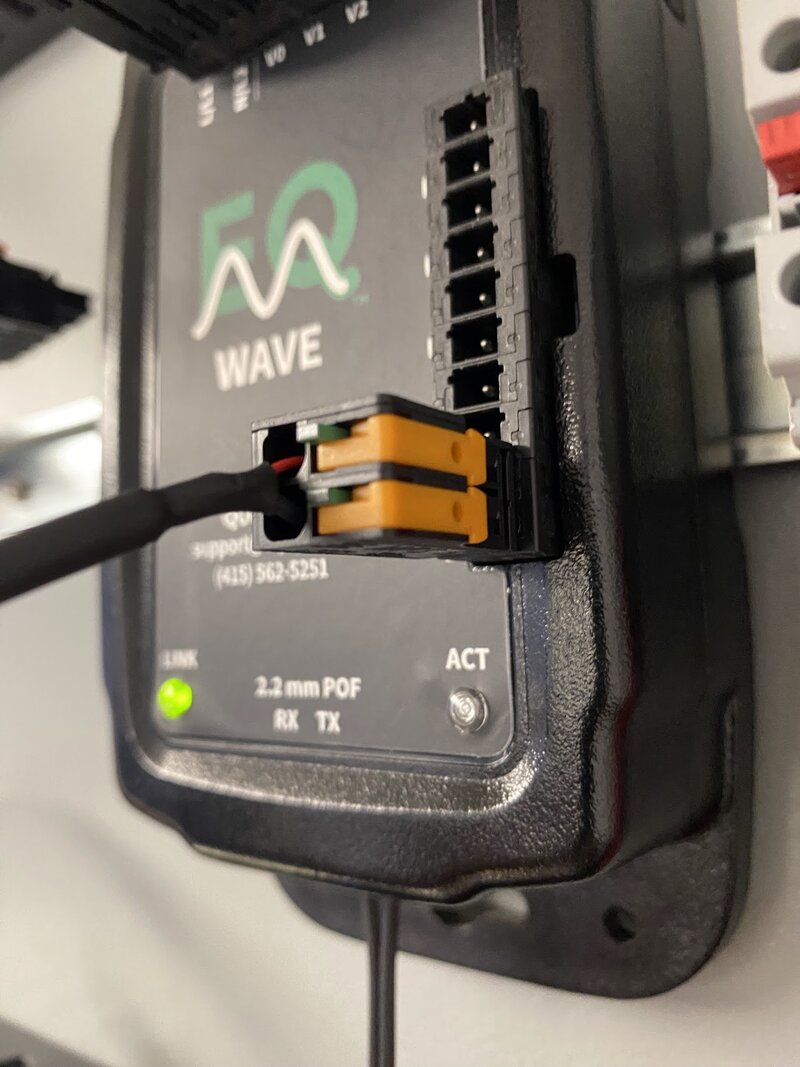
USB power cable connected to DC input for benchtop testing
The included USB power cable provides a convenient 5V DC source for benchtop testing and configuration without requiring AC mains or an external DC supply. The USB cable connects to the VDC+/VDC- terminals.
Grounding and Bonding
Chassis Ground:
- Connect sensor enclosure to facility earth ground per local electrical code
- Recommended wire: 12 AWG minimum copper conductor
- Verify continuity to main ground bus with multimeter
- Proper grounding ensures optimal signal quality and noise immunity
Signal Grounds:
- All measurement circuits are isolated from chassis
- VDC- terminal should be connected to earth ground when using DC power
- Avoid ground loops through current sensor shields
- Unlike other power quality meters, the EQ Wave has no internal ground leakage current
- Ground is limited to the isolated section after voltage measurement only
LED Status Indicators:
After applying power, observe the two LED indicators on the device enclosure:
- Startup: Both LINK and ACT LEDs flash red briefly
- LINK LED: Turns solid green when fiber optic link is established with endpoint
- ACT LED: Turns solid green when actively transmitting data
- Fault condition: LEDs remain red — see Troubleshooting Guide
Step 5: Connect Plastic Optical Fiber (POF)
POF Cable Preparation (if not supplied with pre-installed connectors):
- Cut cable end: Use the supplied POF cutting tool to make a clean, perpendicular cut
- Separate duplex fibers: Split the webbing 10–15mm from the cut end to separate the two fiber strands
- Verify clean ends: Inspect fiber ends; cuts must be smooth and perpendicular, free from debris
Connect to EQ Wave Device:
- Unlock OptoLock® connector (Firecomms): Pull retainer clip outward to open position
- Insert fiber strands: Push both prepared fiber ends fully into the OptoLock receptacle until seated
- Lock connector: Press retainer clip back to closed position to secure fibers
- Verify insertion: Fibers should be firmly held and not pull out with gentle tugging
Route POF Cable:
- Route cable from sensor location (inside electrical panel) to media converter location (typically outside panel), up to 100 m
- Minimum bend radius: 25mm (do not create sharp bends or kinks)
- Avoid routing near sharp edges that could damage fiber
- Secure cable with tie-wraps or cable clamps every 300–500mm along routing path
Connect to Media Converter:
- Repeat OptoLock connection procedure at media converter end
- Match transmit/receive fibers (if devices are powered, illuminated fiber connects to dark port, dark fiber to illuminated port)
Power Media Converter:
- Recommended (simpler): Connect media converter USB power cable to EQ Gateway USB port
- Alternative: Connect to included USB power supply and plug into mains power
Verify Optical Link:
After connecting fiber and powering media converter:
- EQ Wave sensor: LINK LED turns solid green, ACT LED turns green when data transfer is active
- Media converter: Both amber and green LEDs illuminated
- If link does not establish, see Troubleshooting section
Close Electrical Panel:
Once LED status confirms successful link establishment, reinstall panel cover and secure per local electrical code requirements.
Data Access and Configuration
With EQ Coherence (Recommended)
EQ Coherence records all data locally and provides REST API and WebSocket access. EQ Sight provides real-time visualization of waveforms, power metrics, and harmonics. Data can be exported using the equser Python package. Additional protocol support for SCADA/BMS integration is available upon request.
Setup: Refer to the Gateway Overview for setup procedures.
Direct Network Access (Advanced Integration)
For custom applications requiring direct sensor communication:
Network Configuration:
- IP address: 192.168.10.10 (fixed)
- Subnet: 255.255.255.0
- Connect to sensor network via media converter and Ethernet
Data Protocols:
- CPOW: TCP port 1534 — real-time high-resolution waveform streaming
- PMon: TCP port 1535 — 10 or 12 cycle aggregated measurements
Documentation:
- API specifications and programming examples available from [email protected]
- See Data Access Guide for protocol details and sample code
Verification Checklist
After completing installation, verify system operation through EQ Sight or direct network access.
Physical Installation Verification
- Device securely mounted with adequate clearance (25mm minimum all sides)
- All voltage and current measurement wires fully seated in push-in connectors
- Power connection secure (AC or DC, not both)
- POF cable connected at both ends (sensor and media converter)
- POF cable routing has no sharp bends (25mm minimum radius)
- Terminal identification labels applied for future reference
- Electrical panel cover reinstalled and secured
LED Status Verification
- LINK LED solid green (optical link established)
- ACT LED solid green (sensor active and transmitting data)
- Media converter LEDs illuminated (both amber and green)
Voltage Measurement Verification
- All phase voltages displayed and within ±5% of nominal system voltage
- Phase-to-phase voltages balanced (within 2% of each other for symmetrical systems)
- Phase sequence correct (A→B→C rotation, 120° phase separation for 3-phase systems)
- Voltage reference (V0) reading appropriate for system configuration
Current Measurement Verification
- All phase currents displaying reasonable magnitudes for connected load
- Current magnitudes balanced (within expected range for load configuration)
- Active power (kW) positive for all phases (consuming load) or as expected for generation
- Power factor values reasonable for load type
- Current sensor polarity correct on all phases (reverse polarity if power shows negative for consuming loads)
Network Communication Verification
- Gateway can communicate with sensor (web interface shows live data)
- Data updating in real-time (waveforms refreshing, values changing with load)
- No communication errors or timeout messages
- Network link stable over 5–10 minute observation period
Troubleshooting
For comprehensive troubleshooting beyond installation issues, see the Troubleshooting Guide.
Common Installation Issues
Both LEDs Off - No Power
Symptoms: LEDs completely dark, no startup flash.
Diagnostic Steps:
- Verify power source is energized (measure voltage at source)
- Check terminal connections for proper seating (pull gently to confirm)
- Verify correct power type (AC or DC, not both)
- For AC power: Verify voltage within 85–528V range
- For DC power: Verify voltage within 4.5–36V range and correct polarity
Solutions:
- Verify power supply voltage and re-check terminal connections
- Ensure power source circuit breaker is closed
- For DC power: Verify polarity (VDC+ positive, VDC- negative)
- If power verified at terminals but sensor not operating, contact [email protected]
LEDs Remain Red - Fault Condition
Symptoms: LEDs flash or remain solid red after startup, do not turn green.
Diagnostic Steps:
- Check all measurement input connections for proper seating
- Verify no short circuits or over-voltage conditions on measurement inputs
- Cycle power (disconnect, wait 10 seconds, reconnect)
- Check for visible damage to sensor enclosure or terminals
Solutions:
- Verify all terminal connections are fully seated
- Disconnect measurement inputs temporarily to isolate fault
- If fault persists with no connections, contact [email protected] for RMA
LEDs Not Green - No Optical Link
Symptoms: ACT LED solid green, but LINK LED not solid green.
Diagnostic Steps:
- Verify media converter has power (LEDs illuminated)
- Check POF cable connections at both ends (sensor and media converter)
- Inspect fiber ends for contamination or damage
- Verify cable routing has no sharp bends or pinch points
Solutions:
- Remove and reconnect POF cable at both ends, ensure full insertion
- Clean fiber ends with isopropyl alcohol if contaminated
- Re-cut fiber ends if damaged or poorly prepared
- Try swapping transmit/receive fibers at media converter
- If link cannot be established, refer to EQ Gateway troubleshooting documentation or contact [email protected]
Negative Power Readings - Current Sensor Polarity Reversed
Symptoms: Active power (kW) shows negative for consuming loads on one or more phases.
Solutions:
- Recommended: Correct polarity via EQ Gateway software configuration (no rewiring required)
- Alternative: Physically reverse current sensor connections for affected phase (swap + and - terminals)
Incorrect Phase Sequence
Symptoms: Phase rotation displays as A→C→B instead of A→B→C, or phases are misidentified.
Solutions:
- Recommended: Correct phase mapping via EQ Gateway software configuration
- Alternative: Verify and correct voltage input wiring to match actual system phases
Technical Specifications
For complete technical specifications, see the EQ Wave v1 Datasheet (PDF).