Wi-Fi Configuration
If your gateway is equipped with a Wi-Fi transceiver, you can follow the steps below to connect to Wi-Fi networks in range. Raspberry Pi gateways have built-in Wi-Fi and do not require external antennas.
Steps
1. Connect Antennas (Compulab only)
Compulab IOT-GATE gateways require external Wi-Fi antennas. Connect the antennas to the WLAN-A/BT and WLAN-B ports. Tighten securely but not aggressively.
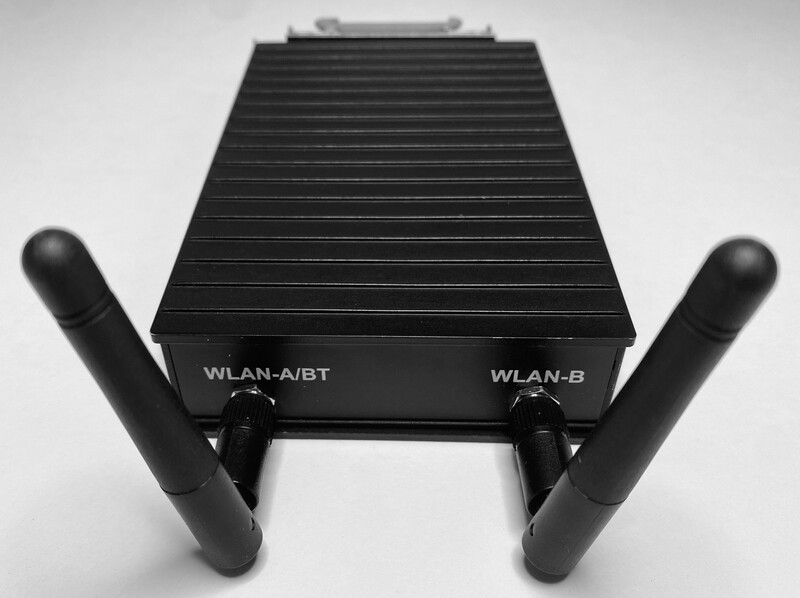
- Keep antennas at least 20cm away from large metal objects
- Maintain clear line of sight to your Wi-Fi router when possible
- Both antennas must be connected for optimal MIMO performance
2. Add Networks
Your gateway can be pre-configured with Wi-Fi network settings during ordering. If you need to modify or add networks later, use the manual configuration steps below.
Manual Configuration
# Enable Wi-Fi radio (if disabled)
sudo nmcli radio wifi on

# List available networks
sudo nmcli device wifi

# Connect to a network
sudo nmcli device wifi connect "<AP name>" password "<password>"
note
Replace <AP name> and <password> with your credentials for your Wi-Fi access point (AP).
Managing Saved Networks
# List saved connections
nmcli connection show

# Delete a saved network
nmcli connection delete "<connection_name>"

# Modify connection priority
nmcli connection modify "<connection_name>" connection.autoconnect-priority <number>
3. Verify Connection
# Check connection status
nmcli connection show
nmcli device status

# Test internet connectivity
ping -c 4 8.8.8.8

# Check signal strength
nmcli device wifi list --rescan yes
4. SSH Access Over Wi-Fi (optional)
To enable SSH access over Wi-Fi:
- Find the Wi-Fi network CIDR:
# Get Wi-Fi IP and subnet information
ip addr show wlan0 | grep "inet "
- Allow SSH access from the Wi-Fi network:
# Replace <network-cidr> with your Wi-Fi network
# For example: sudo ufw allow from 192.168.1.0/24 to any port ssh
sudo ufw allow from <network-cidr> to any port ssh
-
Note your gateway’s current IP address for future access
ip -brief addr show wlan0 -
Test the new configuration by connecting to the gateway following SSH Access
important
This IP address may change when the gateway reconnects unless your Wi-Fi router is configured to assign a fixed IP address. For reliable remote access, consider using a static IP configuration or the gateway’s ethernet connection.
Troubleshooting
Basic Diagnostics
# Show detailed device information
sudo nmcli device show wlan0

# Restart Wi-Fi interface
sudo nmcli radio wifi off
sudo nmcli radio wifi on
Common Issues
Poor Signal Strength
- Verify antenna installation
- Check antenna orientation
- Reduce distance to Wi-Fi router
- Remove metal obstacles
Connection Drops
- Check for interference from other devices
- Verify router settings (band, channel)
- Check system logs:
journalctl -u NetworkManager | tail -n 100
Authentication Failures
- Double-check password
- Verify network security type (WPA2, WPA3)
- Ensure device time is synchronized
- Clear existing connection and retry:
sudo nmcli connection delete "<connection_name>"
sudo nmcli device wifi connect "<AP name>" password "<password>"
Advanced Configuration
Static IP Configuration
nmcli connection modify "<connection_name>" \
    ipv4.method manual \
    ipv4.addresses "192.168.1.200/24" \
    ipv4.gateway "192.168.1.1" \
    ipv4.dns "8.8.8.8,8.8.4.4"
Multiple Network Setup
# Add secondary network (same connection command as above)
sudo nmcli device wifi connect "<AP name>" password "<password>"

# Set connection priorities (higher number = higher priority)
nmcli connection modify "<connection_name 1>" connection.autoconnect-priority 100
nmcli connection modify "<connection_name 2>" connection.autoconnect-priority 50