Storage Media
This guide covers storage hardware selection, capacity planning, endurance, and swap procedures. See Data Storage for storage rates and retention estimates.
Choice of Storage Hardware
Basic Requirements
- USB storage drive, SD card, or other removable media
- USB port on gateway (USB 3.0 required for optimal performance)
- Minimum write speed of 10 MB/s for CPOW recording
Recommended Features
- Industrial temperature rating (-25°C to 85°C) for harsh environments
- Published endurance ratings (terabytes written, TBW)
- UHS-I or better for optimal performance
Performance Considerations
- Interface speed affects data retrieval and visualization:
- Use the blue USB 3.0 port on front panel for best performance
- Back panel USB 2.0 ports will limit transfer speeds
- Sustained write speed affects recording reliability:
- Minimum required: 10 MB/s (e.g., V10 speed class for SD cards)
- Recommended: 30 MB/s or better (e.g., UHS-I for SD cards)
- Although CPOW data averages less than 1 MB/s, data is written in batches and derived data may be added during postprocessing
Storage Rotation
EQ Coherence automatically manages disk space by removing the oldest CPOW data files when free space drops below 4 GB (configurable). If remote storage is enabled, already-replicated files are removed first. Unsynced files are only removed when necessary.
With typical data rates (see Data Storage), 1.5 TB provides approximately 7 weeks of local retention before rotation begins. If your deployment does not include remote data storage, back up any important data before it is overwritten or in case of media failure.
Storage Endurance
- Cards/drives with published endurance ratings (TBW) are strongly recommended for continuous recording
- TBW is the product of rated writes per cell and capacity
- However, actual endurance varies significantly between manufacturers and models
- With a modest 3000 write cycles per cell, endurance varies by capacity:
- A 64 GB card would last about 17 years (64 GB × 3000 ÷ 30 GB/day)
- A 1 TB card would last about 270 years (1000 GB × 3000 ÷ 30 GB/day)
Included Hardware
Industrial gateways ship with 1.5 TB microSD storage; lab gateways include 1 TB NVMe. For replacements or self-sourced media:
- SanDisk MobileMate USB 3.0 Card Reader (SanDisk part number SDDR-B531-AN6NN)
- SanDisk 1.5 TB Ultra UHS-I microSDXC Memory Card (or 1 TB for lab gateways):
- Operating temperature -25°C to 85°C
- V10 speed class (10 MB/s minimum)
- UHS-I interface
- 150 MB/s sequential read
- 10-year manufacturer warranty
- Write endurance not rated
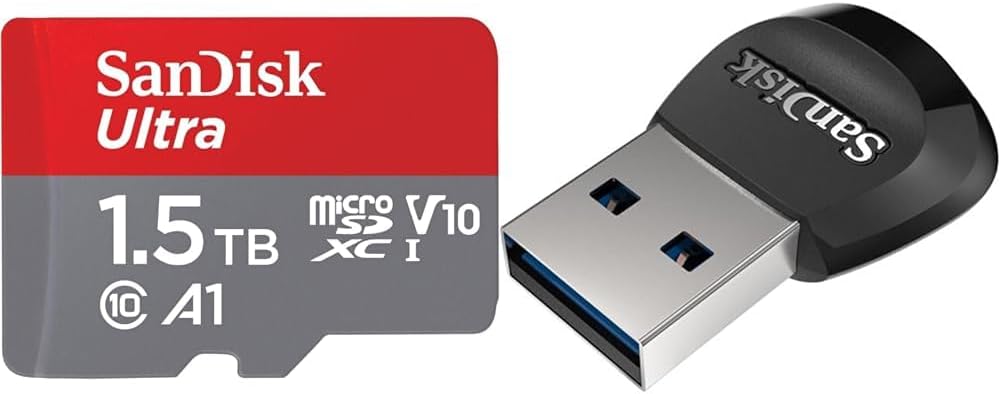
SanDisk Ultra UHS-I microSDXC Memory Card and MobileMate USB 3.0 Card Reader
Extended Storage with SSDs
For higher endurance and capacity than a microSD card, a 2.5“ SSD is the better choice for long-term continuous recording. SSDs connect over USB 3.0 either as a native USB drive or as a SATA 2.5“ SSD paired with a SATA-to-USB 3.0 adapter, and they support up to 4 TB (see Data Storage). Their key advantage is a published write-endurance rating: the bundled microSD card is not endurance-rated, whereas a NAS-class SSD is rated for hundreds to thousands of TBW.
A representative option is the WD Red SA500 NAS SATA SSD, designed for 24/7 write workloads:
- Capacities from 500 GB to 4 TB
- Endurance from 350 TBW (500 GB) to 2,500 TBW (4 TB)
- 560 MB/s read, 530 MB/s write, 5-year warranty
- Operating temperature 0°C to 70°C
note
The WD Red SA500 is a commercial-temperature drive (0°C to 70°C), narrower than the -25°C to 85°C industrial range recommended above. It suits climate-controlled cabinets and indoor installations. For wide-temperature or outdoor enclosures, ask us about industrial-temperature SSD options.
DIN-rail mounting. In a control cabinet, a 2.5“ SSD can be secured with a DIN-rail SSD frame (a bracket that holds the drive on standard 35 mm DIN rail) so the drive is mounted alongside the gateway rather than left loose on the USB cable.
If you are unsure which media fits your deployment, capacity target, or environment, contact us for guidance.
Swapping Storage Media
note
These instructions cover both SD cards and other USB storage devices like flash drives or external hard drives. For best performance, always use the blue USB 3.0 port on the front panel of the gateway.
Prerequisites
- New storage media (pre-formatted from Energy Quotient, or bring your own)
- SSH access to gateway if you are using your own storage media
Steps
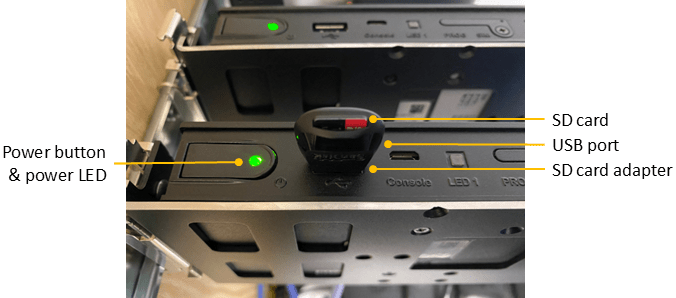
Picture of gateway including power button, power LED, and SD card with adapter
-
To safely shut down the gateway:
- Press and hold the power button for 1 second, then release
- Wait for the LED to turn off (about 2–3 seconds) before proceeding
-
Remove the storage media:
- For SD cards: Remove card from adapter (may be easier to remove adapter from USB first)
- For USB devices: Unplug from the USB port
-
Insert the new storage media:
- For SD cards: Insert new card into adapter and reinsert into USB port
- For USB devices: Plug directly into USB port
-
Press and hold the power button for 1 second to turn the gateway back on.
-
If you are using your own storage media, follow the Storage Media Setup instructions to format and prepare the media.
Storage Media Setup
These instructions are for users who purchase their own storage media rather than using pre-formatted media from Energy Quotient. This process will prepare the media for use with EQ Coherence.
warning
The following commands will erase all data on the SD card. Make sure you have selected the correct device!
- Check Device
# Insert SD card into adapter and adapter into gateway's USB port ls /dev/sda* # Confirm that /dev/sda1 exists # If not, try: # sudo mknod /dev/sda1 b 8 1 # Useful commands for device verification: lsblk -o name,uuid,label sudo blkid - Partition and Format
# Create a new partition table and single partition using all space sudo parted -s /dev/sda mklabel gpt sudo parted -s /dev/sda mkpart primary ext4 0% 100% # Format the card with no percentage-based reserved space sudo mkfs.ext4 /dev/sda1 -L eqdata -m 0 # Reserve 100MB (25600 4K blocks) for log management sudo tune2fs -r 25600 /dev/sda1 # Mount and set up permissions sudo mount -a sudo rm -r /mnt/eqdata/lost+found/ # Set correct ownership and permissions for synapse group sudo chown synapse:synapse /mnt/eqdata sudo chmod 2775 /mnt/eqdata - Verify
# Check mount points, sizes, and device info df sudo blkid # Check filesystem integrity (unmount first) sudo umount /dev/sda1 sudo e2fsck -f /dev/sda1 sudo mount /dev/sda1 /mnt/eqdata - Remove or start using the new media
# To remove the media:
sudo umount /dev/sda1

# Or to restart and use the new media:
sudo shutdown -r now