Lab Gateway: Raspberry Pi
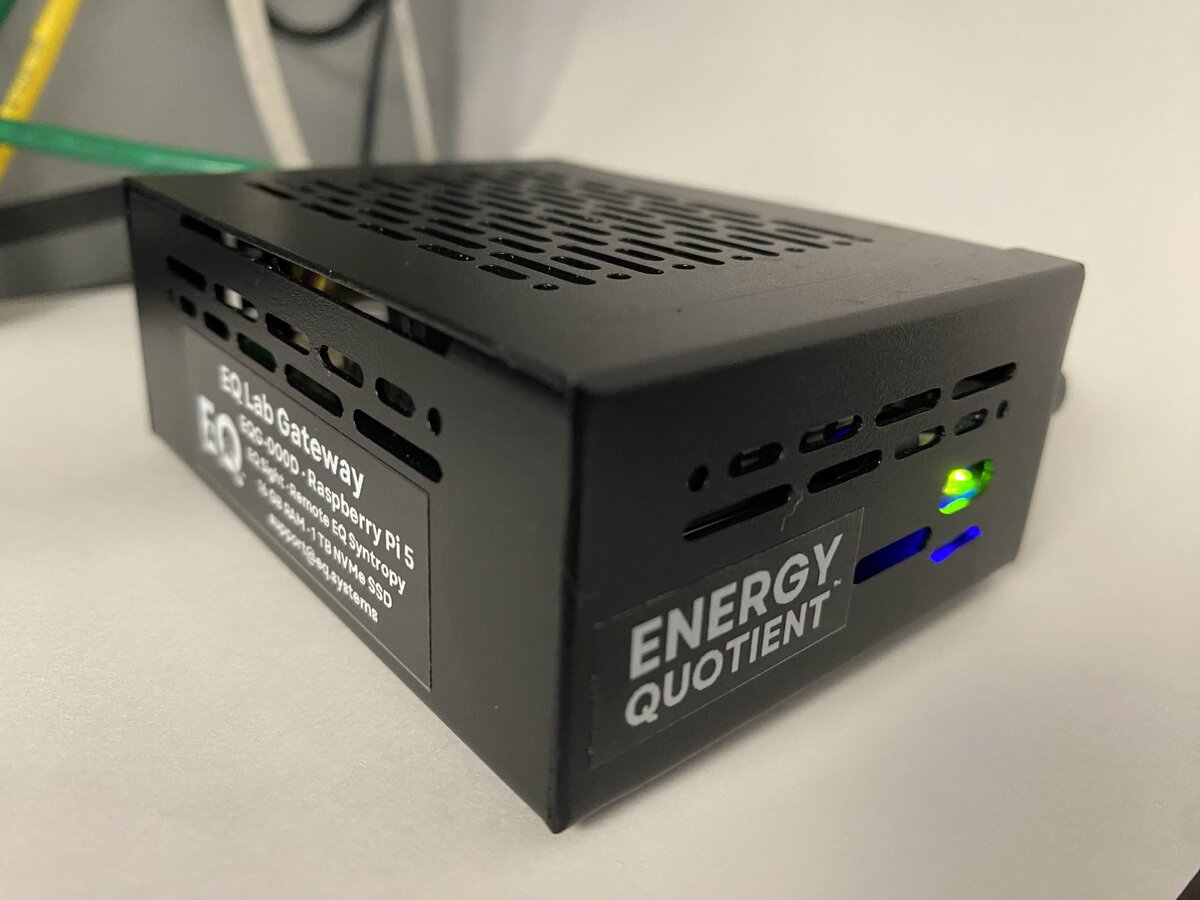
EQ Lab Gateway (Raspberry Pi 5, 16 GB RAM, 1 TB NVMe SSD)
The Lab Gateway is built on Raspberry Pi 5. It runs the same EQ Coherence software stack as the industrial gateways but is suited for lab environments, workbench testing, demonstrations, and smaller deployments where industrial hardening is not required.
Technical Specifications
- Platform: Raspberry Pi 5, 16 GB RAM
- Processor: Broadcom BCM2712 quad-core ARM Cortex-A76
- Storage: 1 TB NVMe SSD (boot + data)
- Power: 5V/3A USB-C, 10–15W typical
- Operating Temperature: 0°C to 50°C
- Enclosure: Branded steel case with fan cooling
- Network: Built-in Gigabit Ethernet + USB 3.0 Gigabit Ethernet adapter (included)
Network Configuration
The Lab Gateway ships with dual Ethernet pre-configured:
- eth0 (built-in): Sensor network (EQ Wave via media converter)
- USB Ethernet adapter: LAN / facility network
This is the opposite of Compulab gateways where eth1 is typically the sensor interface.
Display & Kiosk Mode
Lab Gateways with a connected monitor can operate in two display modes:
- Kiosk mode (demo user): Chromium opens fullscreen showing EQ Sight. No desktop, no taskbar. Ideal for wall-mounted displays and demonstration units.
- Desktop mode (eqadmin or admin user): Standard desktop environment with full access to terminal, file manager, and browser.
User accounts
| User | Purpose | Desktop | Sudo |
|---|---|---|---|
eqadmin | Vendor/technical access | Full desktop | Yes |
admin | Customer administrator | Full desktop | Scoped |
demo | Kiosk display | Chromium fullscreen only | No |
The gateway auto-logs in to whichever user is configured in setup.yml under users.autologin (default: eqadmin).
Switching between modes
Using raspi-config
To change which user auto-logs in:
sudo raspi-config
Navigate to System Options > Boot / Auto Login and select:
- Desktop Autologin — logs in as the current user (shown in the menu)
- Desktop — requires manual login at the greeter (pick any user)
After changing, reboot for it to take effect:
sudo reboot
Using setup.yml (during provisioning)
Set the users.autologin field before running sudo eq system provision:
users:
  autologin: "demo"     # Kiosk mode (Chromium fullscreen)
  # autologin: "eqadmin"  # Desktop mode (default)
Exiting kiosk mode
If the gateway is in kiosk mode and you need temporary access to the desktop:
| Action | Effect |
|---|---|
| Alt+F4 | Closes Chromium, reveals the desktop |
| Ctrl+Alt+T | Opens a terminal window (may work over Chromium) |
| Ctrl+Alt+F2 | Switches to a text console (login with eqadmin) |
| Ctrl+Alt+F1 | Switches back to the graphical session |
Chromium will relaunch in kiosk mode on the next reboot.
To permanently exit kiosk mode, switch the autologin user to eqadmin using raspi-config as described above, then reboot.
Kiosk configuration in setup.yml
Kiosk mode is configured during provisioning via the kiosk section:
kiosk:
  enabled: false                     # Set true for display deployments
  hostname: "{site}.pq.app"         # Site hostname for EQ Sight
  hide_cursor: true                  # Hide mouse cursor when idle
  disable_blanking: true             # Prevent screen from blanking
When enabled, provisioning will:
- Install Chromium and unclutter (cursor hider)
- Add a localhost entry in
/etc/hostsso the hostname resolves locally, bypassing Cloudflare Access - Create autostart entries in the demo user’s home directory
- Disable screen blanking and low-voltage warnings for a clean display
Lab Kit
The Lab Gateway is available as a complete lab kit including an EQ Wave sensor, media converter, POF cable, and all accessories needed for benchtop or panel deployment. Contact [email protected] for details.